

Example output
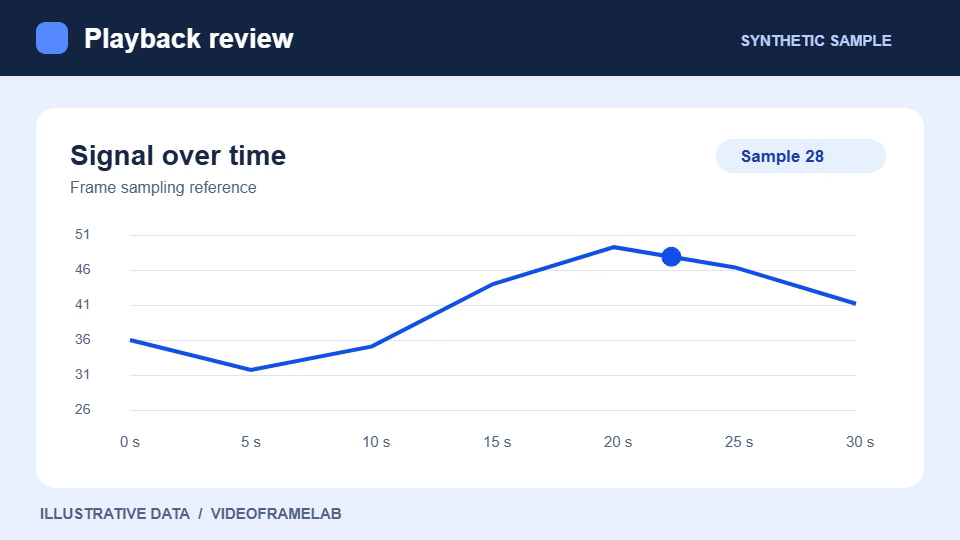
One still from an H.264 MP4
This 960 × 540 PNG was captured at a requested time of 2.25 seconds from our three-second synthetic MP4.
How these examples were made
These outputs were generated with VideoFrameLab in Chromium 156.0.8078.4 from synthetic videos. Captions identify the requested time, dimensions or export settings. The linked files are the actual exports. Results can differ with the scene, codec and browser.
How to use this tool
Open your MP4
Choose the video file from your device. An H.264 MP4 is a good starting point.
Choose when to sample
Set a range for a batch, or pause the preview to capture one still.
Save the images
Review the frame library, then download a PNG, JPG or ZIP from Images.
What to know before exporting
- Container and codec
- MP4 is a container. Two files ending in .mp4 can contain different video codecs, and the browser may read only one of them.
- File-size limits
- Browser decoding accepts files up to 200 MiB. If the browser cannot open the video directly, eligible files up to 32 MiB can use the automatic compatibility decoder.
Frequently asked questions
Why will one MP4 open and another fail?
The codec, browser and file condition affect decoding. Try another browser or make an H.264 MP4 copy in a local video editor.
Does a shorter capture range reduce the input size?
The range controls how much of the timeline you sample. The input limit still applies to the whole file you opened.
What does this converter produce?
It produces still images and optional ZIP archives. Use a video editor if you need a new video file in a different format.