

Example output
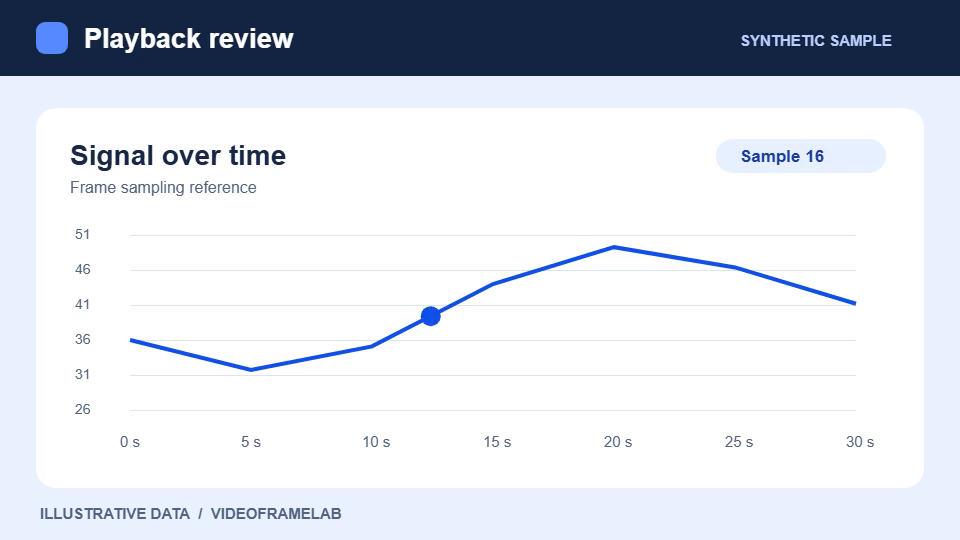
A PNG frame with text and chart labels
Captured at a requested time of 1.25 seconds from our synthetic screen recording, then downloaded at the original 960 × 540 size.
How these examples were made
These outputs were generated with VideoFrameLab in Chromium 156.0.8078.4 from synthetic videos. Captions identify the requested time, dimensions or export settings. The linked files are the actual exports. Results can differ with the scene, codec and browser.
How to use this tool
Find a readable moment
Open a local video and pause when the text, chart or interface is fully visible.
Capture and check the frame
Capture the current timestamp, or sample a range for several options. Open a frame to inspect the details.
Save as PNG
PNG is preselected in Images. Keep Original size for all captured pixels, or set a smaller download size.
What to know before exporting
- Lossless image encoding
- PNG preserves the decoded image at the chosen output size. Blur or compression already present in the video remains visible.
- Output budget
- Large source frames reach the capture budget sooner. Capture fewer stills or use a wider time interval. Download resizing applies after capture.
Frequently asked questions
When is PNG useful?
PNG is a good choice for readable labels, fine lines and stills you want to annotate or edit.
Can I save several PNG frames together?
Yes. Choose selected frames or all frames in Images, then use Download ZIP.